App Storeの国・地域を変更する方法(iPhone)
対象国のApple IDを用意します。新規登録時は国/地域を先に選び、ネットワークを揃えます。次に住所ジェネレーター、ギフトカード、公式アプリです。
更新日 2026年10月
From price to subscribe — four steps
From price to subscribe — four steps
Price first, then a billing address, then the gift card, then the official app. Follow Apple and the app’s terms.
- Pick the product and storefront price — Compare the App Store list. Cheaper is not always easier to check out.
- Fill billing with a format-valid address — Copy street, city, and postal code into Apple’s form. Layout helper — not a real home.
- Buy and redeem a matching gift card — Foreign cards often decline. Redeem the storefront currency onto this Apple ID.
- Switch region and subscribe in the official app — Secondary Apple ID, matching network, then pay inside the app. We do not sell accounts.
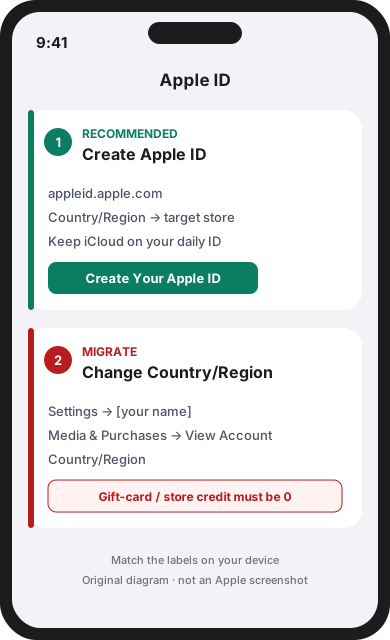
推奨
対象国の新しいApple IDを作成
日常のiCloudは主アカウントのまま、appleid.apple.com で副アカウントを作り、国/地域を対象ストアにします。
既存のApple IDの国を変更
ギフトカードを含むアカウント残高が残っていると、Appleは国の変更を拒否します。サブスクリプションを解除し、期間終了を待ってから変更してください。
移行する場合、先に完了すること
- Appleアカウント/ギフトカード残高を使い切る(残高0)。
- サブスクリプションをキャンセルし、支払済期間の終了を待つ。
- 予約注文、レンタル、ファミリー共有、返金の完了を待つ。
- 新しい国の形式に合う請求先住所を用意する。
設定 → [名前] → メディアと購入 → アカウントを表示 → 国/地域 → 国または地域を変更
![設定 → [名前] → メディアと購入 → アカウントを表示 → 国/地域 → 国または地域を変更](/guides/switch-region/step-migrate-settings.svg)
図のメニュー名は Apple の現行パスに合わせています(設定 → [名前] → メディアと購入 → アカウントを表示 → 国/地域)。端末の表示に従ってください。
1. Apple IDを用意する
副アカウントの新規作成を推奨します。
新規:appleid.apple.com で国/地域を先に選びます。
移行:設定 → [名前] → メディアと購入 → アカウントを表示 → 国/地域。
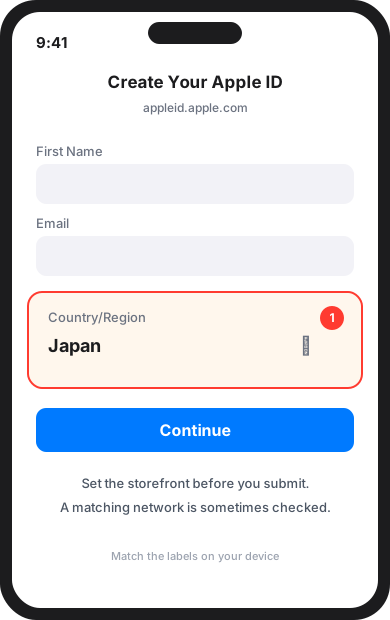
2. 登録時にストアを合わせる
作成フォームで国/地域を対象ストアにしてから送信します。
ネットワークの一致を確認されることがあります。特定ツールの使用は必須ではなく、決済成功も保証しません。
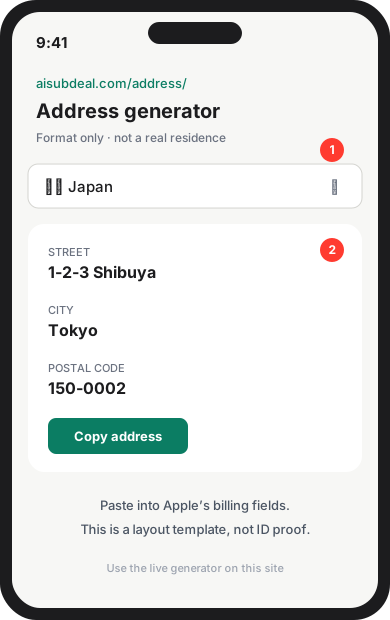
3. 住所ジェネレーターで請求先を入れる
新しい国の形式の請求先住所が必要です。
住所ジェネレーターはレイアウト用で、実在の住所証明ではありません。
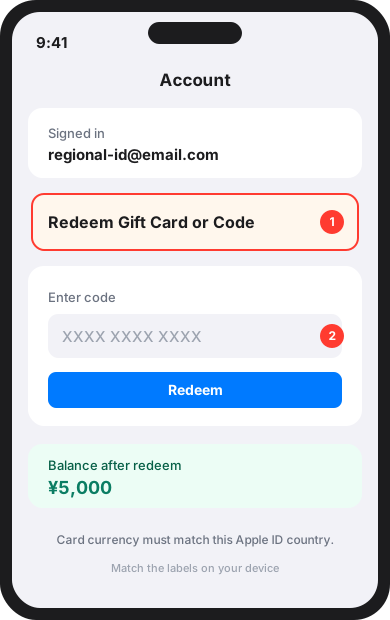
4. 対象国のギフトカードを交換
海外カードは拒否されやすいです。対象国通貨のApp StoreギフトカードをこのIDに交換します。
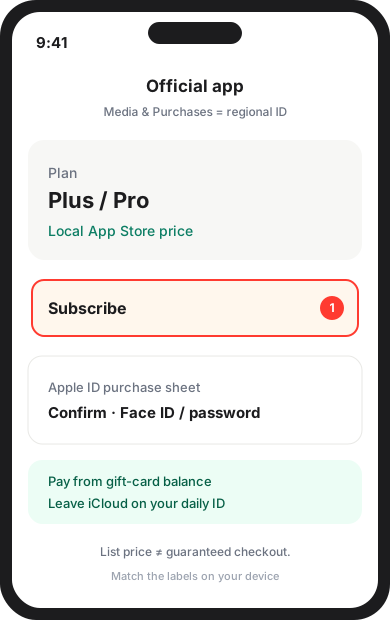
5. 公式アプリで購読
iCloudは主IDのまま、メディアと購入だけ地域IDでサインインします。公式アプリで購読。表示価格は決済保証ではありません。